
Guides / Sharing an orthomosaic
How to share an orthomosaic with a client
For drone and survey operators delivering aerial images to clients without GIS software.
An orthomosaic is the deliverable clients understand best: it's a photo of their site, and it's to scale. It's also often several gigabytes, and a GeoTIFF of that size won't open in a photo viewer. Here are the usual ways to share one, and what each asks of your client.
1. A picture (JPEG or PDF)
Export a reduced copy as a JPEG, or lay it out on a page as a PDF.
- Good for: a quick look, a report, a slide.
- Not good for: anything to scale. The detail you flew for is gone, there are no coordinates, and the client can't measure or zoom in.
2. Google Earth (KMZ)
Most processing software, and GIS programs such as QGIS, can export the image as a KMZ that opens in the free Google Earth Pro.
- Good for: small sites, and clients who already use Google Earth.
- Not good for: large or high-resolution images (the file gets large and slow), clients who can't install software, or adding a terrain model, contours or a point cloud next to it.
3. The GeoTIFF itself
Send the full-resolution GeoTIFF through a cloud drive or transfer service.
- Good for: clients with GIS or CAD, and as the archive copy everyone should get.
- Make it smaller first: for an RGB image, JPEG compression inside the TIFF (quality 85 to 90) is usually a fraction of the size of an uncompressed or LZW file and looks the same on screen. Use BigTIFF when it's over 4 GB, and keep the coordinate system in the file.
- Not good for: clients without GIS. They download gigabytes they can't open.
4. A web map
Cut the image into map tiles and serve them in a web map, so the client zooms in the browser and only the part on screen loads. You can do this yourself with free tools (GDAL, a tile server, a map library) and a web host, or let a delivery service do it.
SurveyDeliver does it when you upload: the GeoTIFF (or a plain TIFF with its world file) is converted for the web automatically and placed on the map in your coordinate system, local grids included. Your client gets one link with your logo on it.
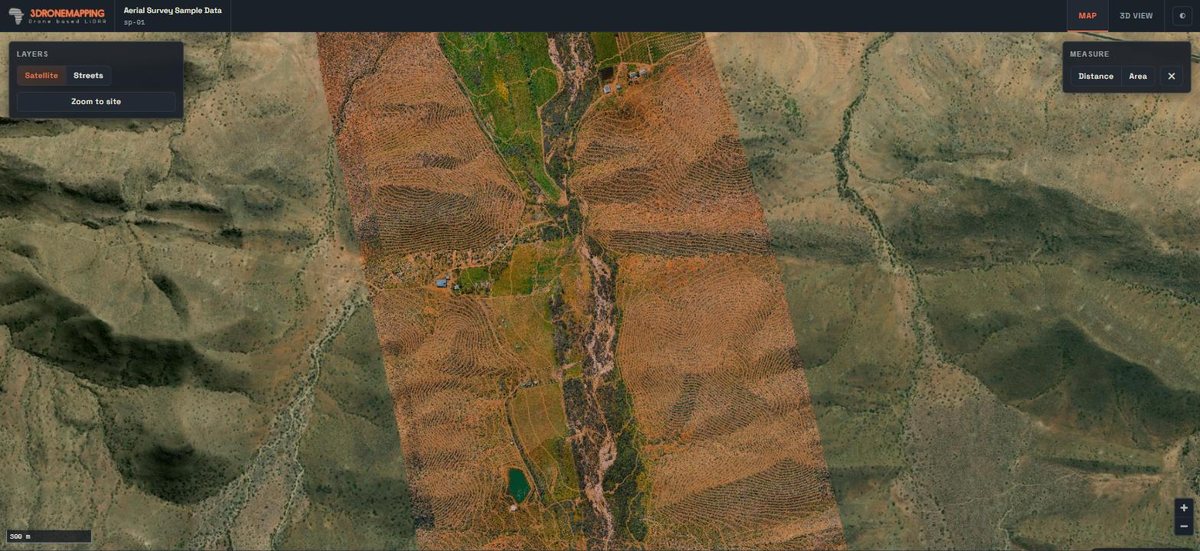
- Your client can: zoom to full detail, measure distances and areas, read coordinates in your grid, compare the image with another layer using a swipe, print or save the map as a PDF with a title block, and pin notes for you.
- On the same link: the image lying on the ground in 3D, the terrain model, contours, line work and the point cloud, and the original GeoTIFF to download.
- With a terrain model: slope, where rain water runs and ponds, and tools such as water up to a level and cut and fill, worked out for you.
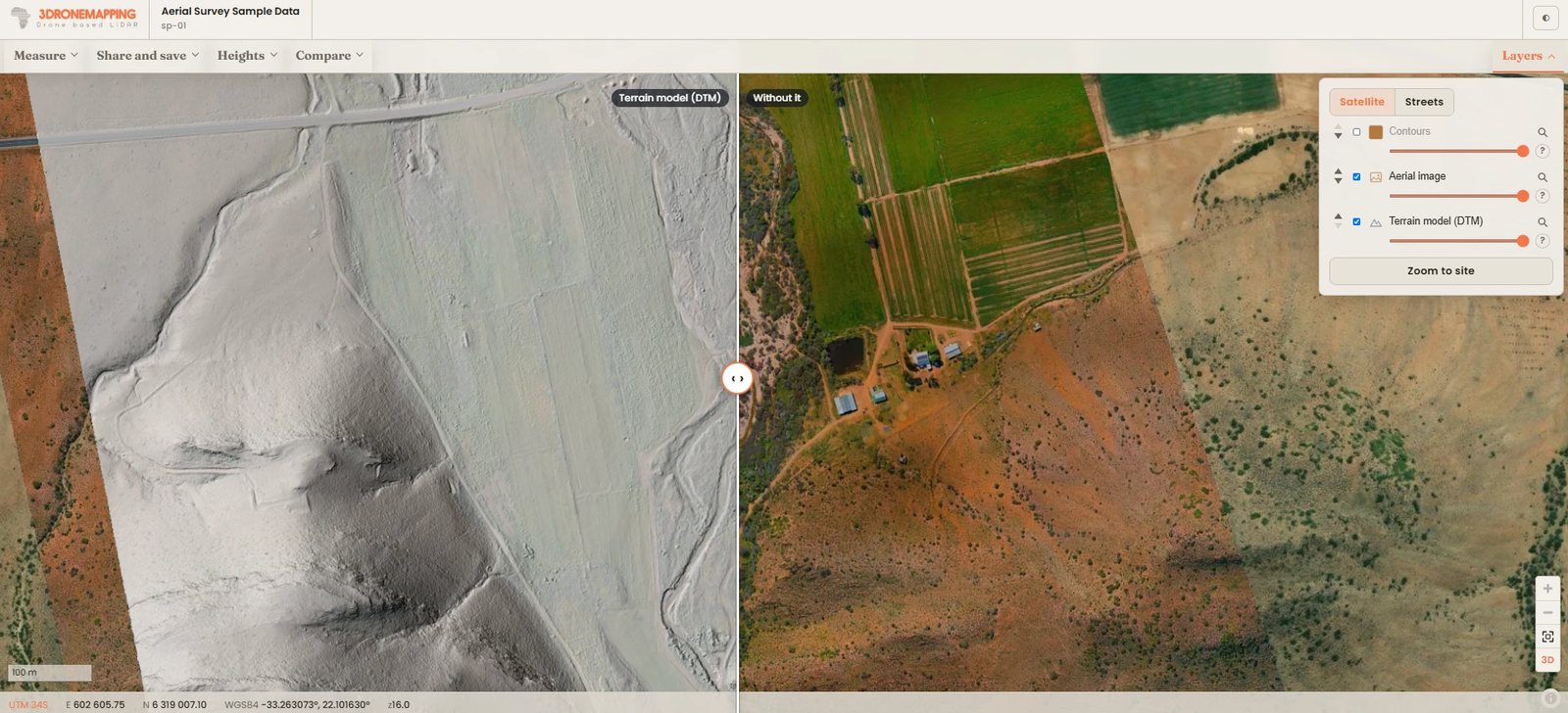
See it on a real delivery: open the sample (opens in a new tab). Then try it with one of your own jobs: 14 days, no card needed.
Before you export: four tips
- Three colour bands are enough. Drop extra bands (such as an empty fourth band) unless the client needs them; the file shrinks.
- Check the coordinate system is in the file. A GeoTIFF without it, or a TIFF without its .tfw and .prj, lands in the wrong place or nowhere.
- Don't build overviews for the upload. They add size; web maps make their own.
- Name it for the client. "Farm North, aerial image, 5 cm, Oct 2026" reads better than "ortho_final_v3".
Export settings for each package: DJI Terra · Pix4D · Metashape · WebODM · and the general data guide.