
Guides / Sending a point cloud to a client
How to send a point cloud to a client
For drone and survey operators whose clients don't have GIS or CAD software.
A point cloud is often the biggest thing you deliver and the hardest for a client to open. A farmer, a site manager or an engineer's office usually has no software that reads LAS or LAZ, and a 4 GB file doesn't go by email. Here are the four ways operators usually do it, and what each one asks of you and of your client.
1. Send the file
Put the LAS or LAZ file on a cloud drive or a transfer service and send the link.
- Send LAZ, not LAS. LAZ is the same data compressed without loss, usually a fifth to a tenth of the size. Every processing package exports it.
- Say what's in it: the coordinate system and height datum, the point density, and which classes it has (ground, vegetation, buildings).
- Good for: clients with their own GIS, CAD or engineering software.
- Not good for: anyone else. They download gigabytes, then find they can't open them.
2. Send the file and a free desktop viewer
Free programs such as CloudCompare (Windows, Mac and Linux) open LAS and LAZ, measure, and draw cross-sections.
- Good for: a technical client who will install software and learn it.
- Not good for: a client on a work laptop that blocks installs, on a phone, or who needs it explained every time. You become their support desk.
3. Host your own web viewer
Potree is a free, open-source viewer that shows a point cloud in the browser. You convert the cloud with PotreeConverter and put the result on a web server.
- Good for: an operator with a web server and the time to set it up and keep it running.
- What it takes: converting each cloud, hosting and paying for the storage and traffic, a login so the client's data isn't public, and placing it in the right coordinate system. The aerial image, contours and downloads are separate jobs again.
4. Send a delivery link
This is what SurveyDeliver does (and what we built it for, for our own jobs). You upload the LAZ you already export; your client gets one link with your logo on it, and the point cloud opens in their browser on a computer, tablet or phone. Nothing to install.
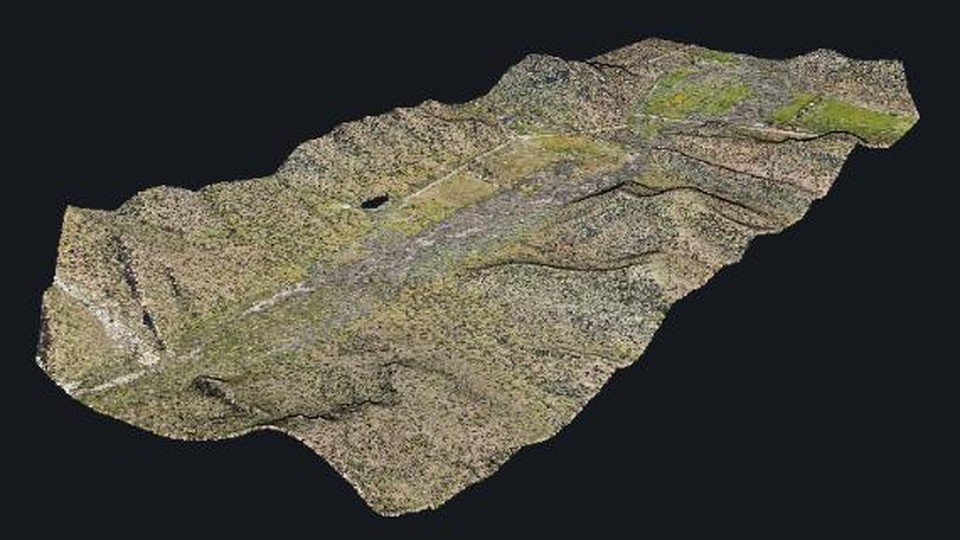
- Your client can: colour it by photo, height, class or intensity; switch classes such as ground and vegetation on and off; measure distances, areas and heights; draw a cross-section and save it as CSV or DXF; pin notes for you.
- With it on the same link: the aerial image lying on the ground in 3D, the contours, a map from above, and every original file to download, the LAZ included, for whoever needs it.
- Your coordinate system: read from the file, including local grids such as the South African Lo systems and UTM zones. If the file has none, you're asked in plain words before the upload starts.
- Big files: uploads go in parts and carry on if the line drops; your processing PC can send them itself with an upload key.
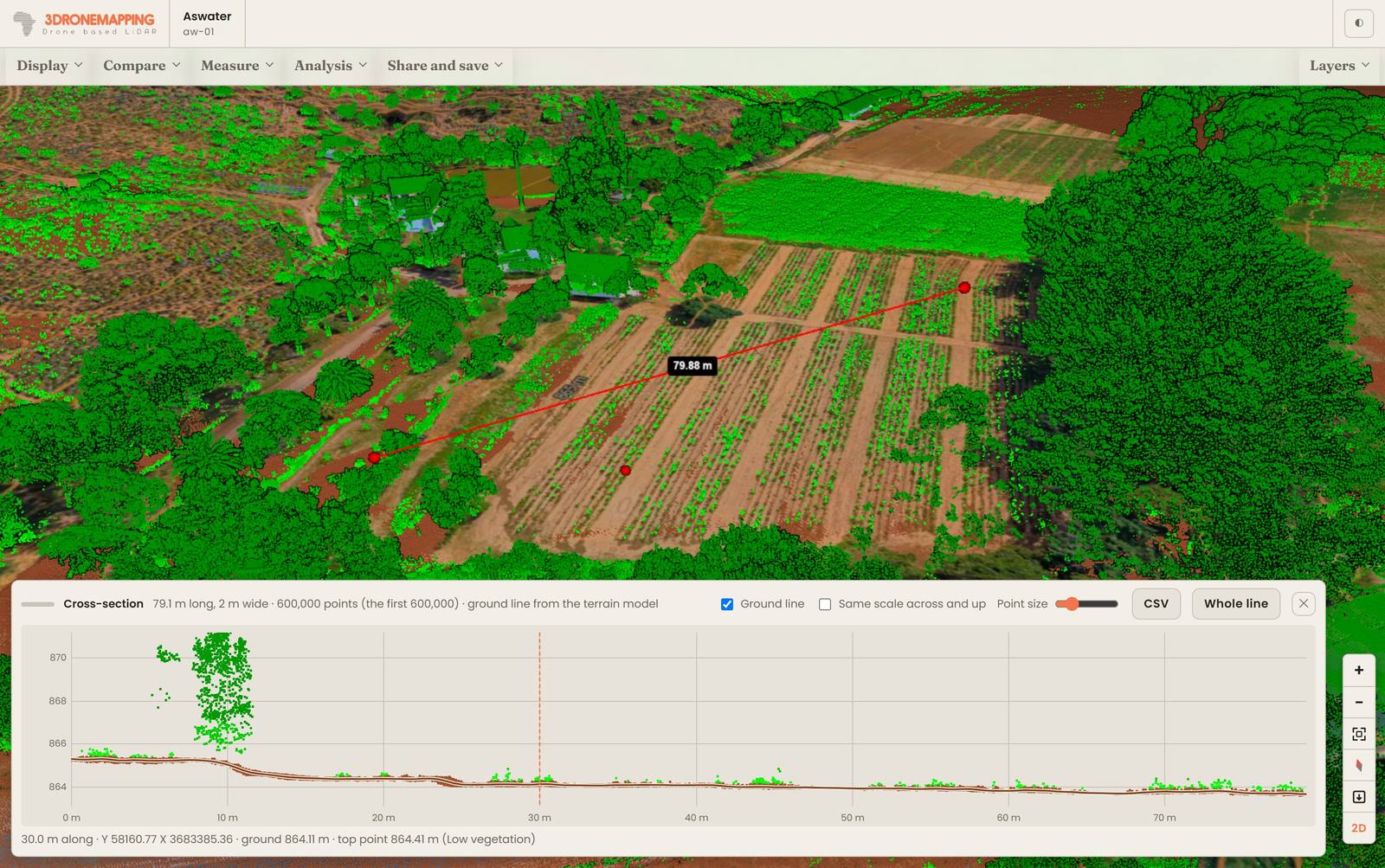
See it on a real delivery: open the sample (opens in a new tab). Then try it with one of your own jobs: 14 days, no card needed.
Before you export: five tips
- Classify ground at least. A client who can switch off vegetation sees the shape of the land; one who can't sees trees.
- Check the coordinate system is written into the file. Without it, nothing can place the cloud on a map, whichever way you deliver.
- Export colour (RGB) if you have it. A coloured cloud is what most clients recognise.
- Don't thin it for the viewer. Web viewers load detail as you zoom in; a full-density cloud loads as fast at first as a thinned one.
- Keep one cloud per area. If you have tiles, merge them or upload them to the same delivery; they show together.
Export settings for each package: DJI Terra · Pix4D · Metashape · WebODM.